Reports
Every test produces a detailed report.
You see every step of the scenario in one report, one step at a time. Each step's metrics, errors, logs and AI comments sit right there with it.
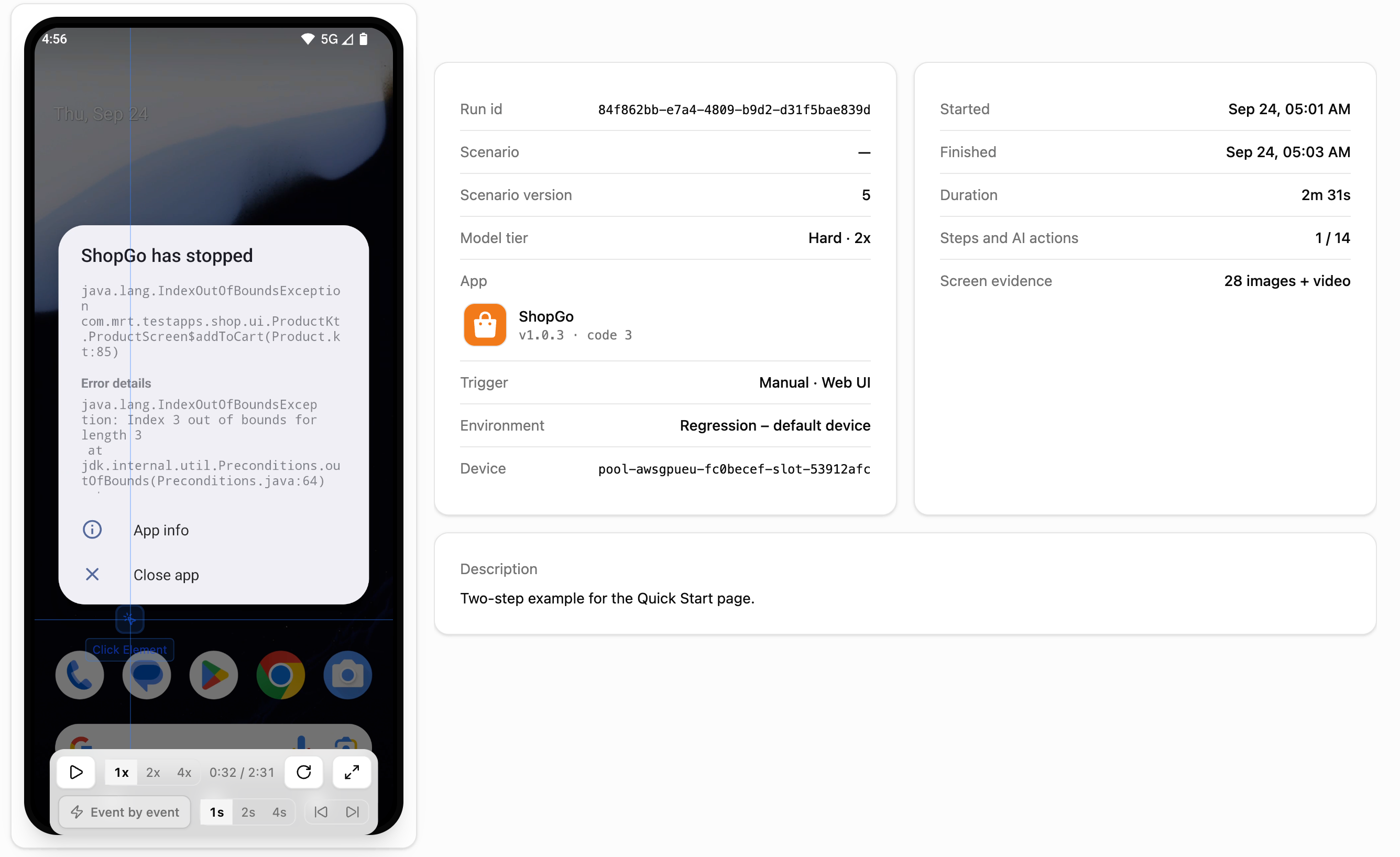
What is inside
Every report opens the same way
A report is split into tabs. When you know what you are looking for, you go straight to it.
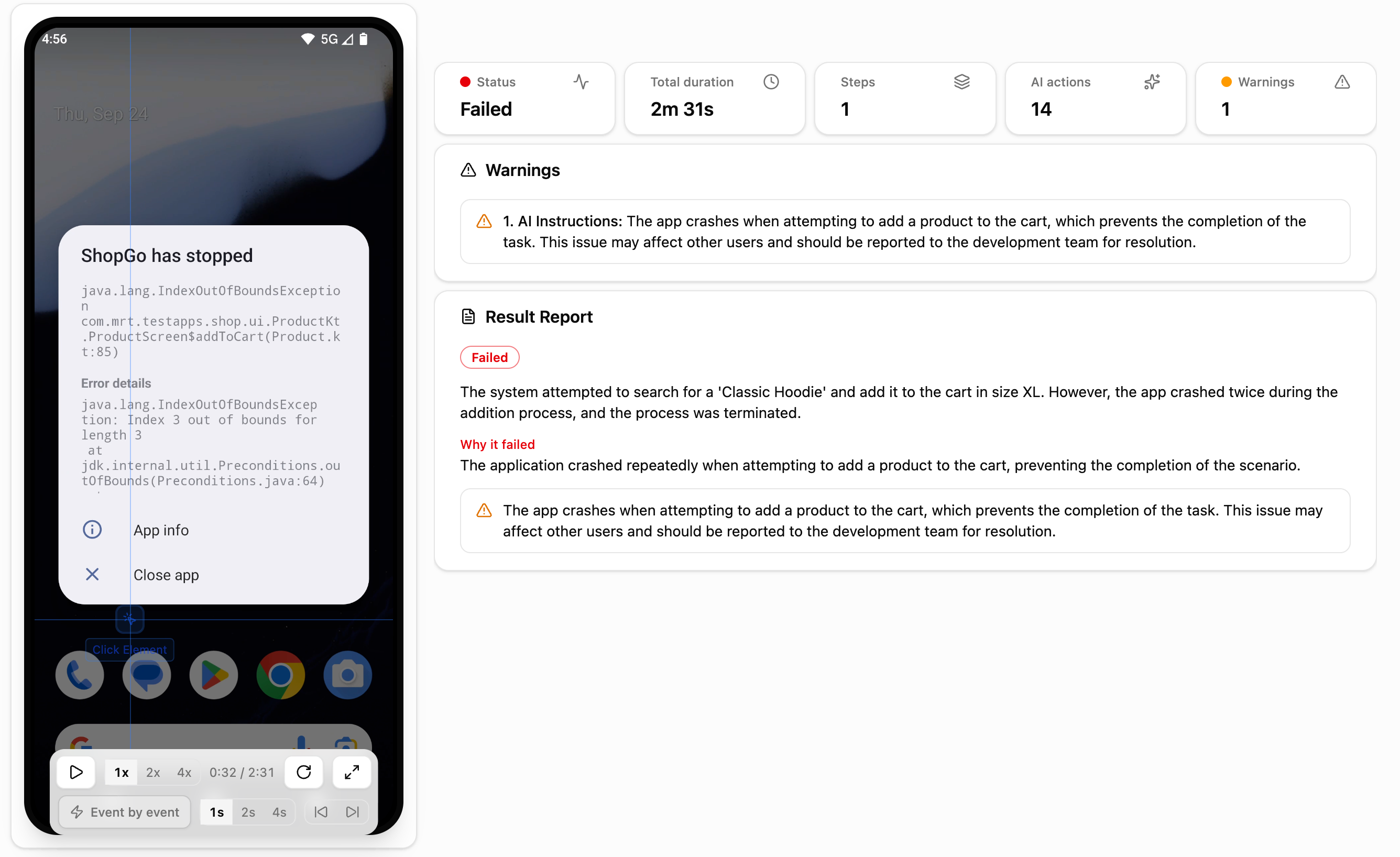
Summary
The result and the short story
Whether the test passed, how long it took and how many steps it made. Under it, a short result report tells how the agent went through the test.
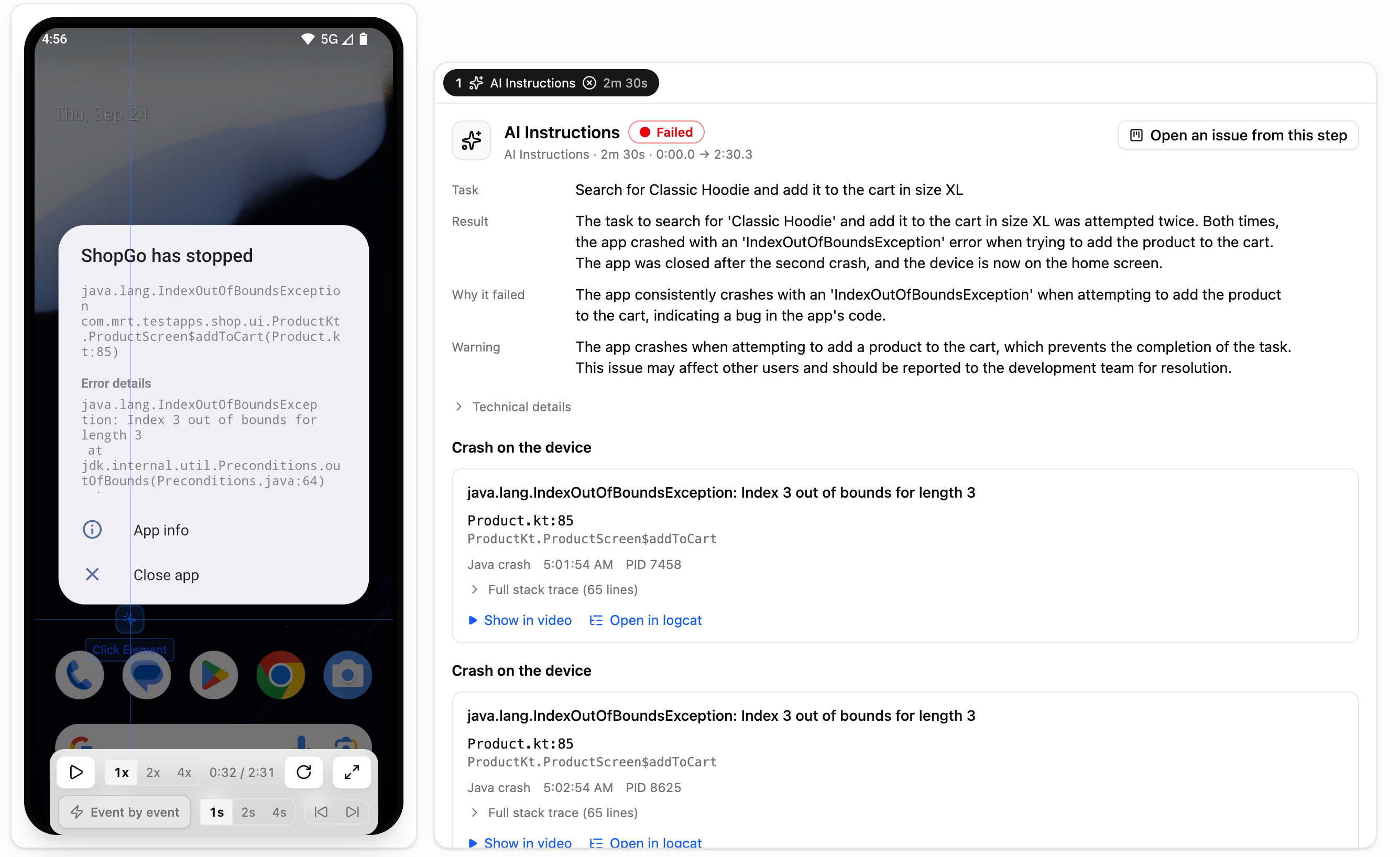
Steps
Every step, to the second
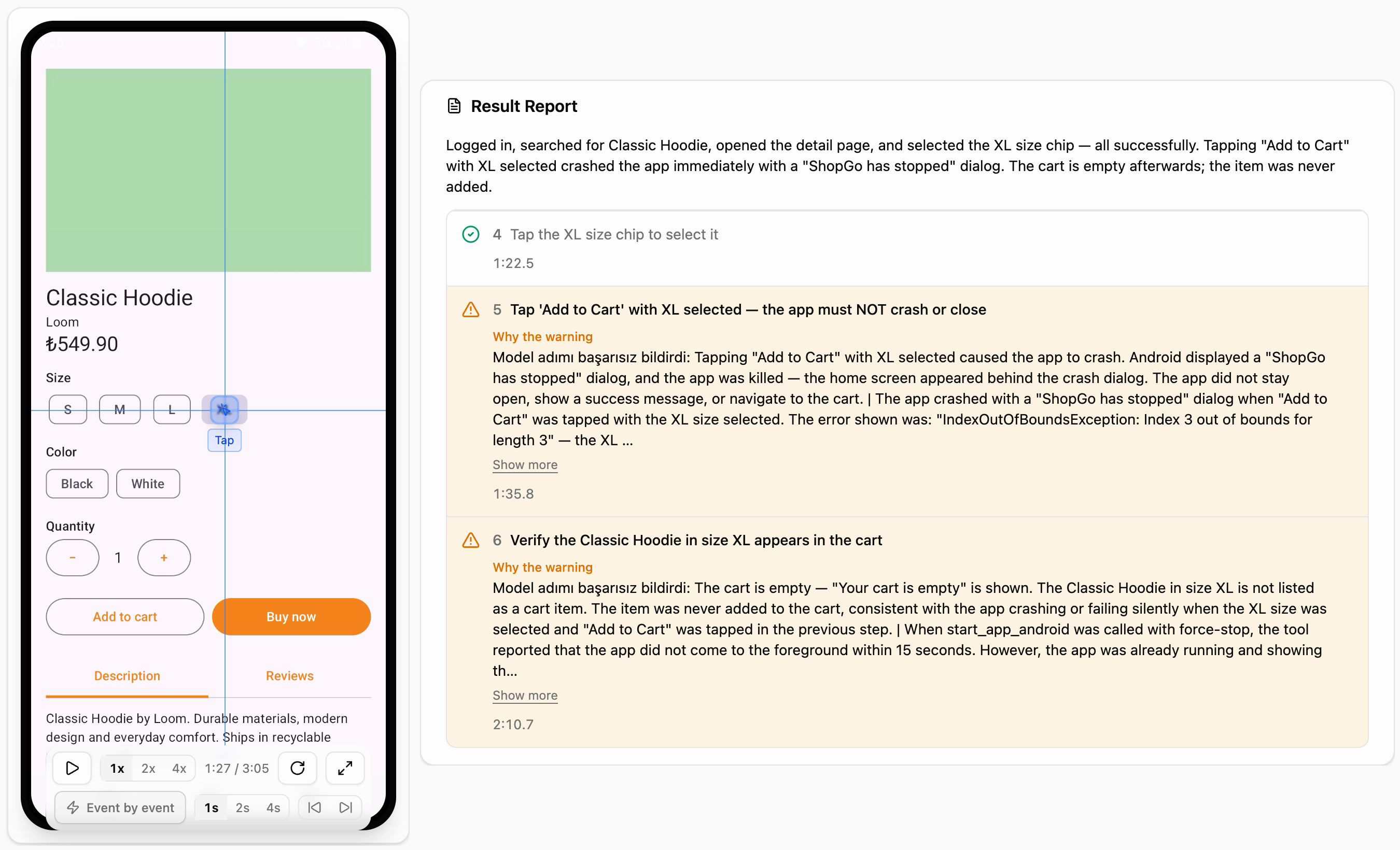
Each step shows the moment it started and ended. The agent explains what it did in its own words, and every place it touched is listed.
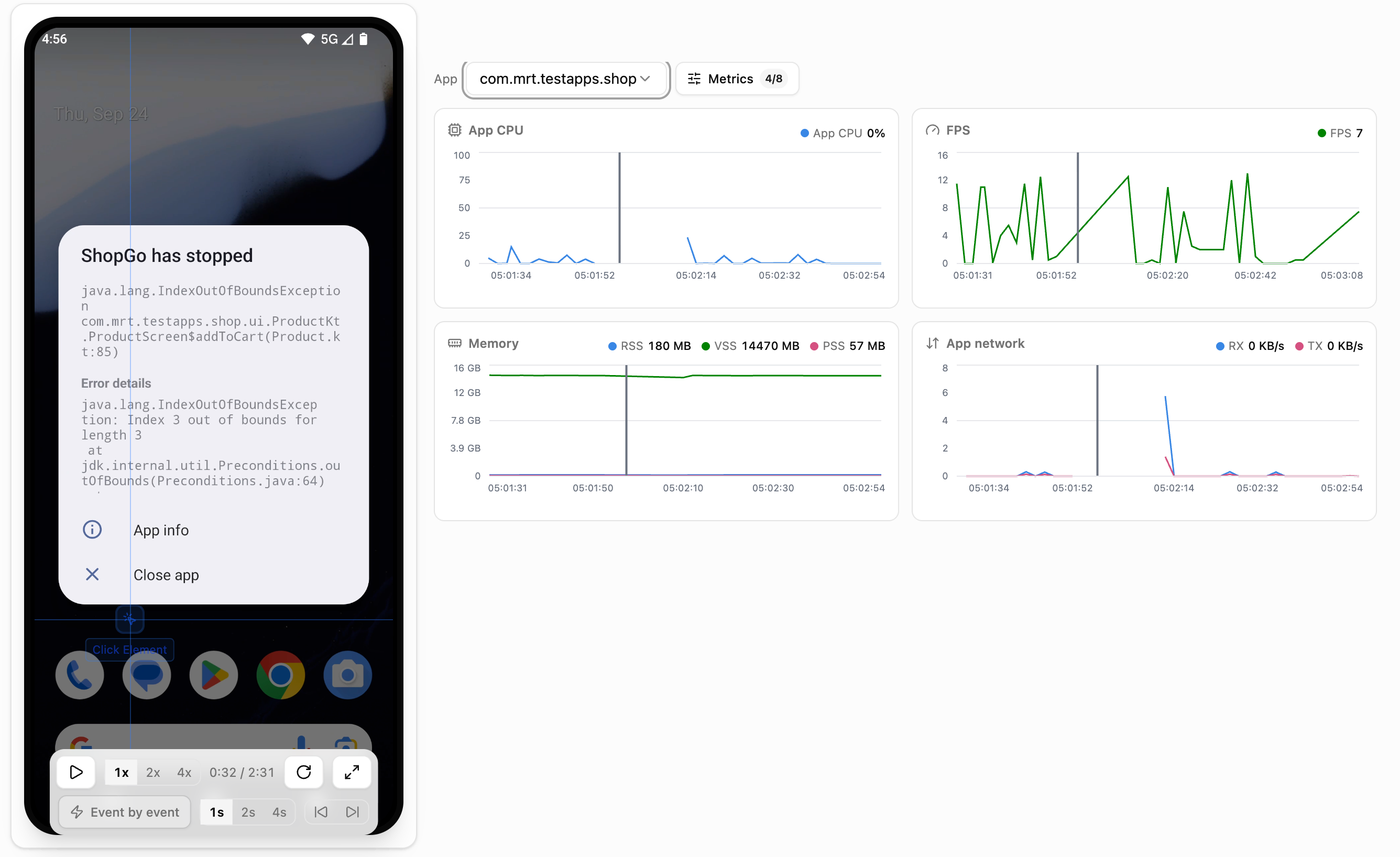
Performance
What the app went through
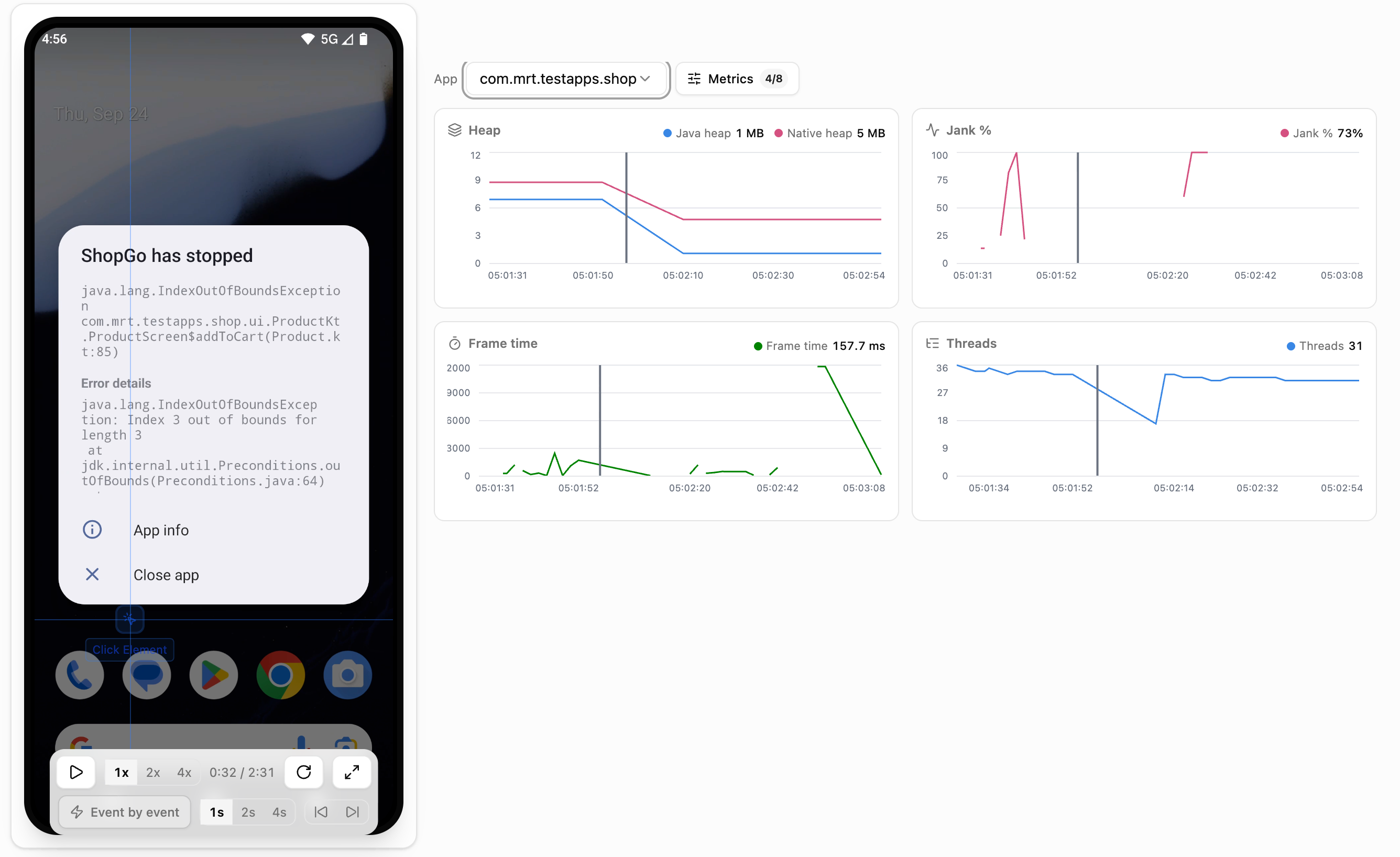
CPU, frame rate, memory and network use are drawn for the whole test. You choose which app the numbers come from.
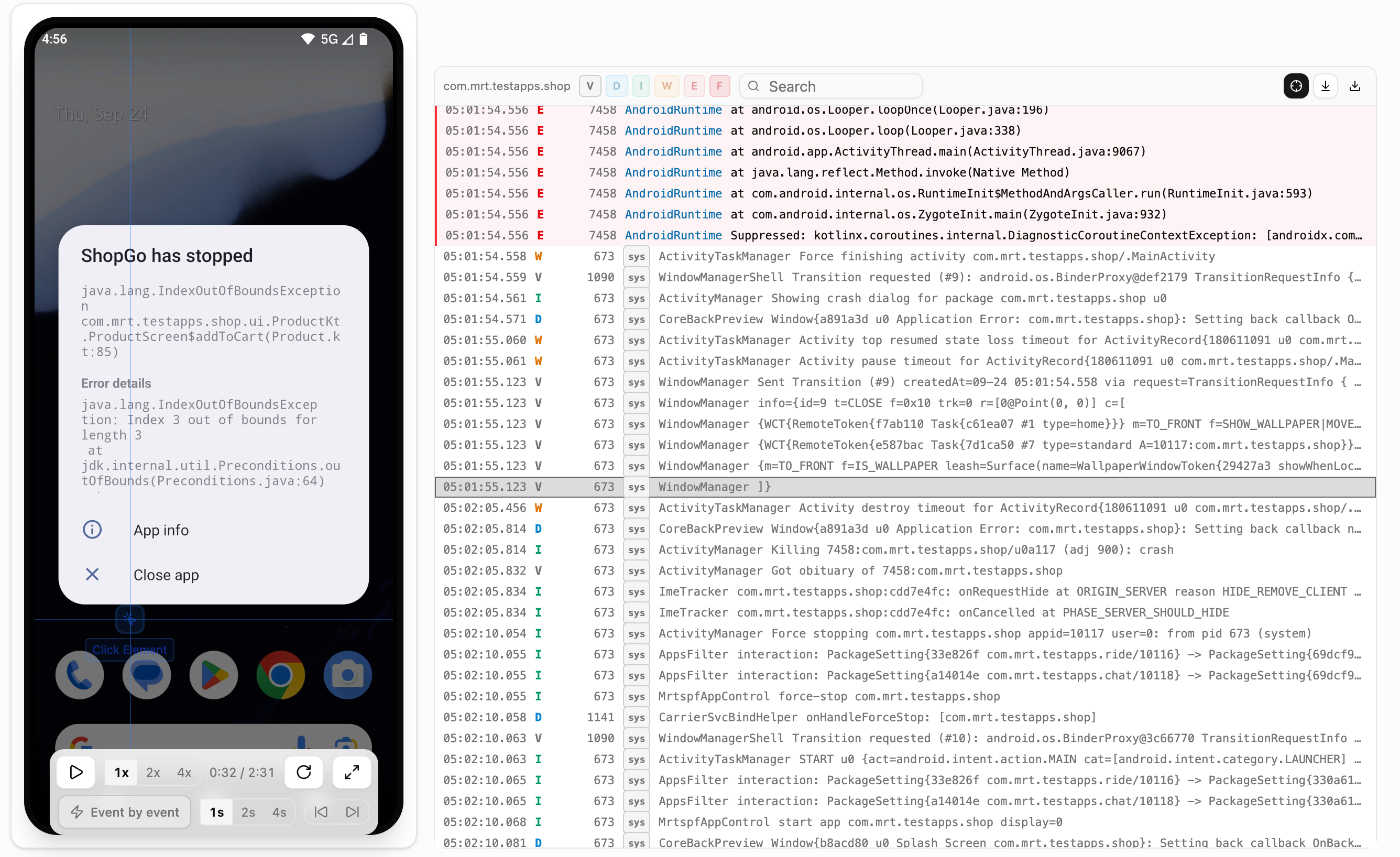
Logcat
The device's own logs
The logs Android keeps are stored with the test. If the app crashed, the full trace is here.
Video
The whole test is recorded
Watch it at 1x, 2x or 4x. Jump to any second on the timeline.
Share
One link
You send the report as one link. You can make the link public or keep it closed.
Proof
You see right away where the bug came from.
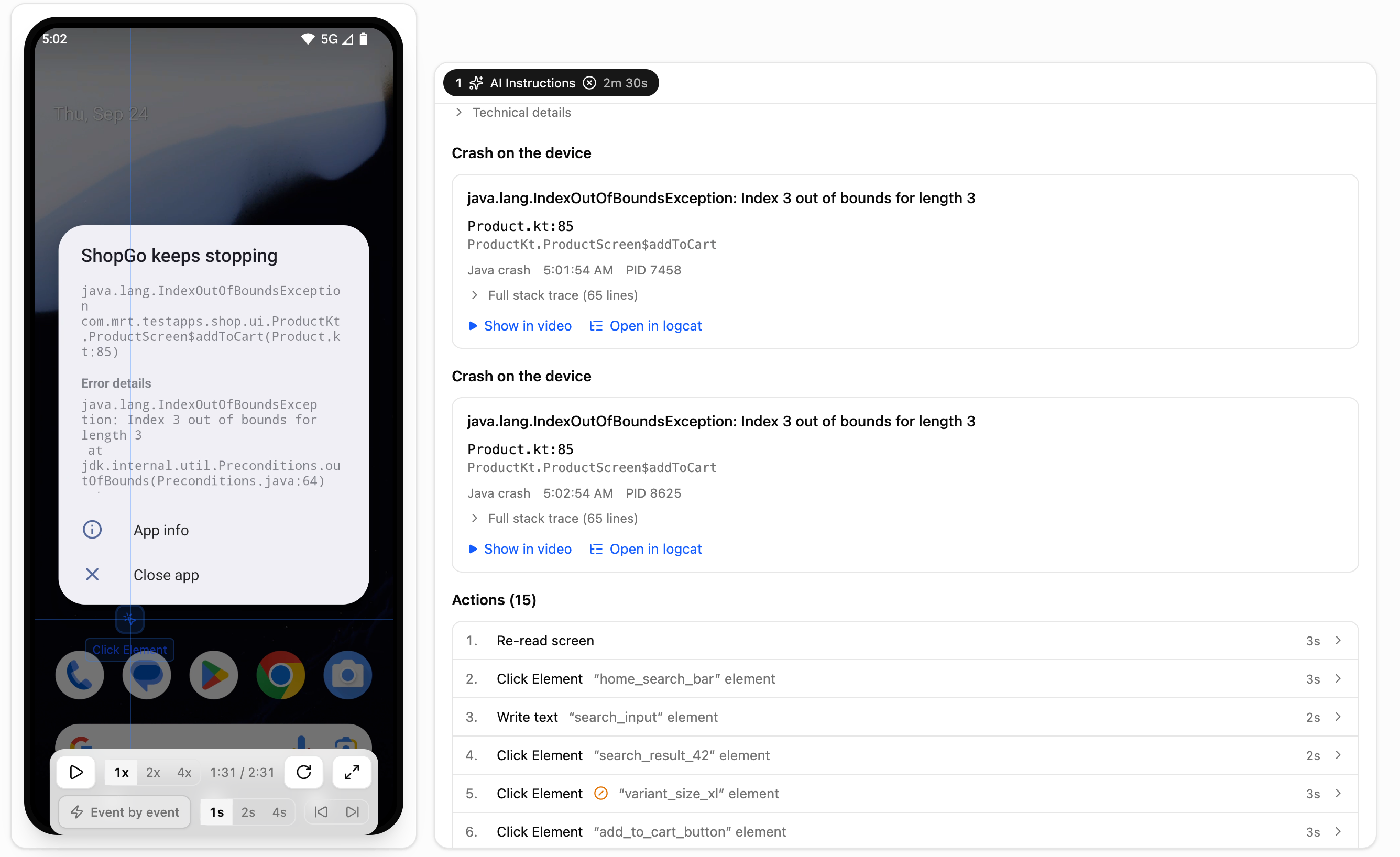
When the app crashes, the report shows you the crash itself. Two buttons take you to that moment in the video and to that line in the logs.
- The name of the error and the line of code it came from
- Show in video takes you to the second it happened
- See the errors in Logcat, along with your logs from the moment of the error
- See the warnings, errors and AI explanations on every step
Performance
The app's performance metrics during the scenario are on record
Sometimes a test ends without an error, but the app got slow along the way. The Performance tab shows that. You pick which metrics to look at.
Stability
You see how far a scenario can be trusted
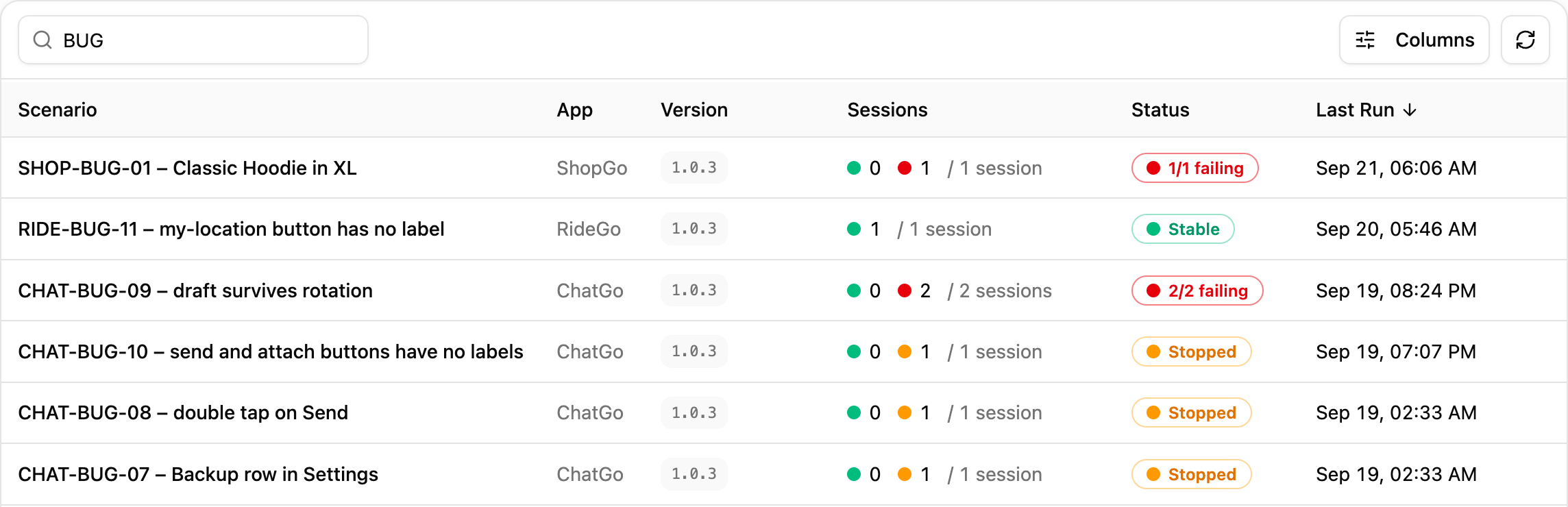
You can follow the latest results of each scenario.
- Every test keeps its own report, none is folded into another
- Tests that finished cleanly are kept too
- Reports stay until you delete them
After the test
Where the report goes
- 01
The test ends
The report is prepared on its own. Nobody has to put anything together.
- 02
Send it to the team
One link. When you share it publicly, the other side does not need an account.
- 03
Connect GitHub, Jira or Slack
On GitHub the result shows up as a check on the pull request. In Jira a failed test opens an issue, and Slack sends your team a notification.
Let's read a report together.
We run a test on your own app and open the report with you.