The test agent
Write what should happen. The agent does it on the phone.
You describe the test in a plain sentence. The agent opens your app on an Android phone, looks at the screen, decides what to do next on its own, and tells you whether the result was right.
AI Instructions
AI
PROMPT
FLOW PORTS
One sentence
What a sentence turns into on the device
You write the goal. The agent chooses the actions, and every action it took is in the report afterwards with the time it needed.
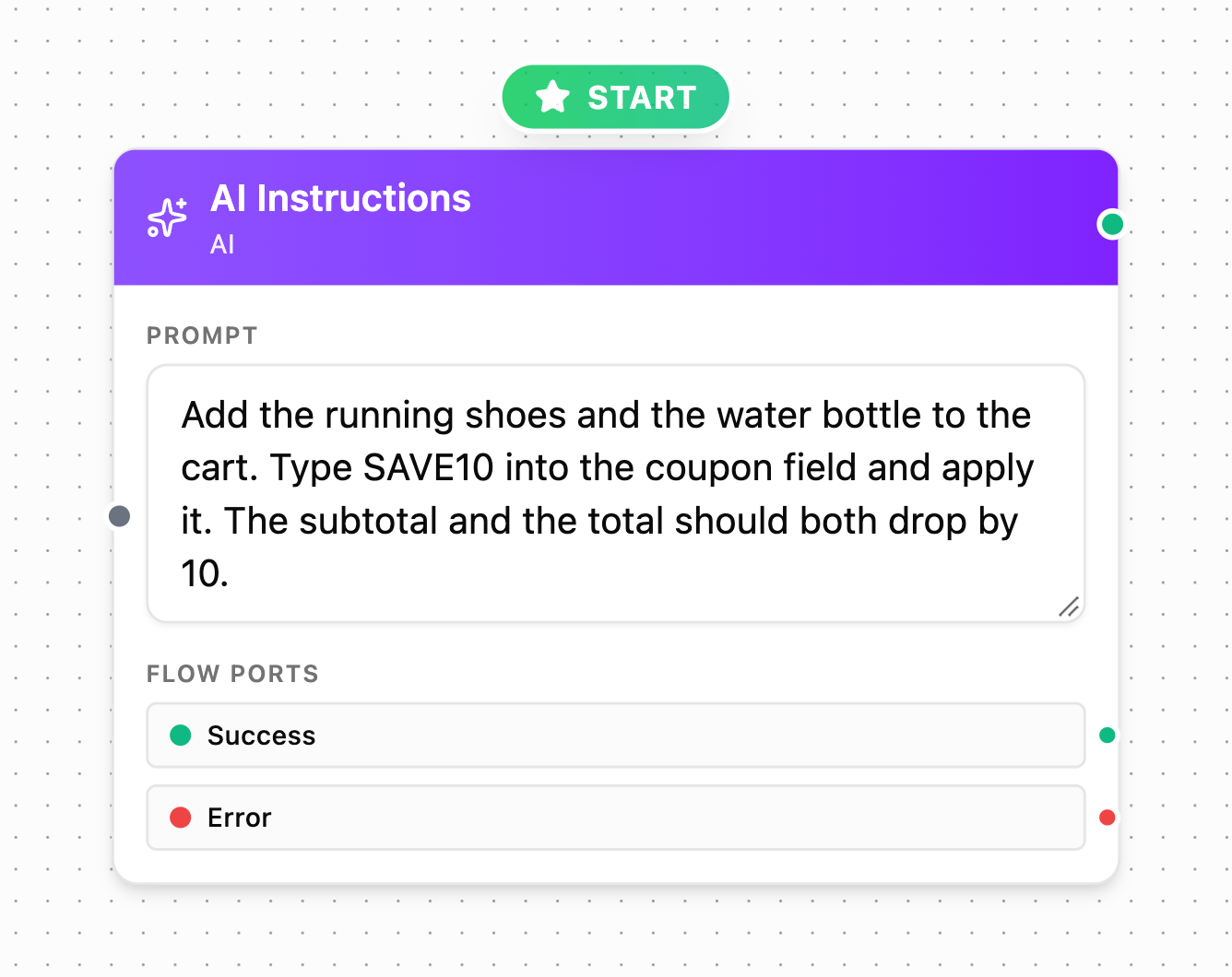
Every box has two exits, Success and Error, so you decide what the run does when a step does not go the way you wrote it.
What the agent did
- Start appcom.shopgo.android1.2 s
- Find and tap“Add to cart”, on two items1.4 s
- Find and write textcoupon: SAVE100.9 s
- Wait for the screenthe cart recalculated0.6 s
- Read element texttotal: ₺998.000.4 s
- AI Verificationexpected ₺988.00, the coupon never reached the total0.7 s
The boxes
You build a scenario from boxes you connect. They do not all do the same job.
A scenario is built from boxes you connect. These are the ones that think for themselves.
Whole run
Autonomous device agent
You write what should be tested and it builds the rest of the run itself.
Instruction
AI Instructions
Carries out the goal in the prompt on the device by itself.
Check
AI Verification
Decides whether what you expected actually happened.
Read
AI Extraction
Reads a value off the screen and hands it to the next step.
Branch
AI If
Splits the flow in two based on what it sees.
Repeat
AI Loop
Keeps doing the same work for as long as a condition holds.
Autonomous Device Agent
The strongest box: it builds the whole test for you
Put one Autonomous Device Agent box in the scenario and write what to test in a single sentence. The agent does the rest. It adds the other boxes itself, connects them, changes or deletes them when needed, and runs the test.
One sentence
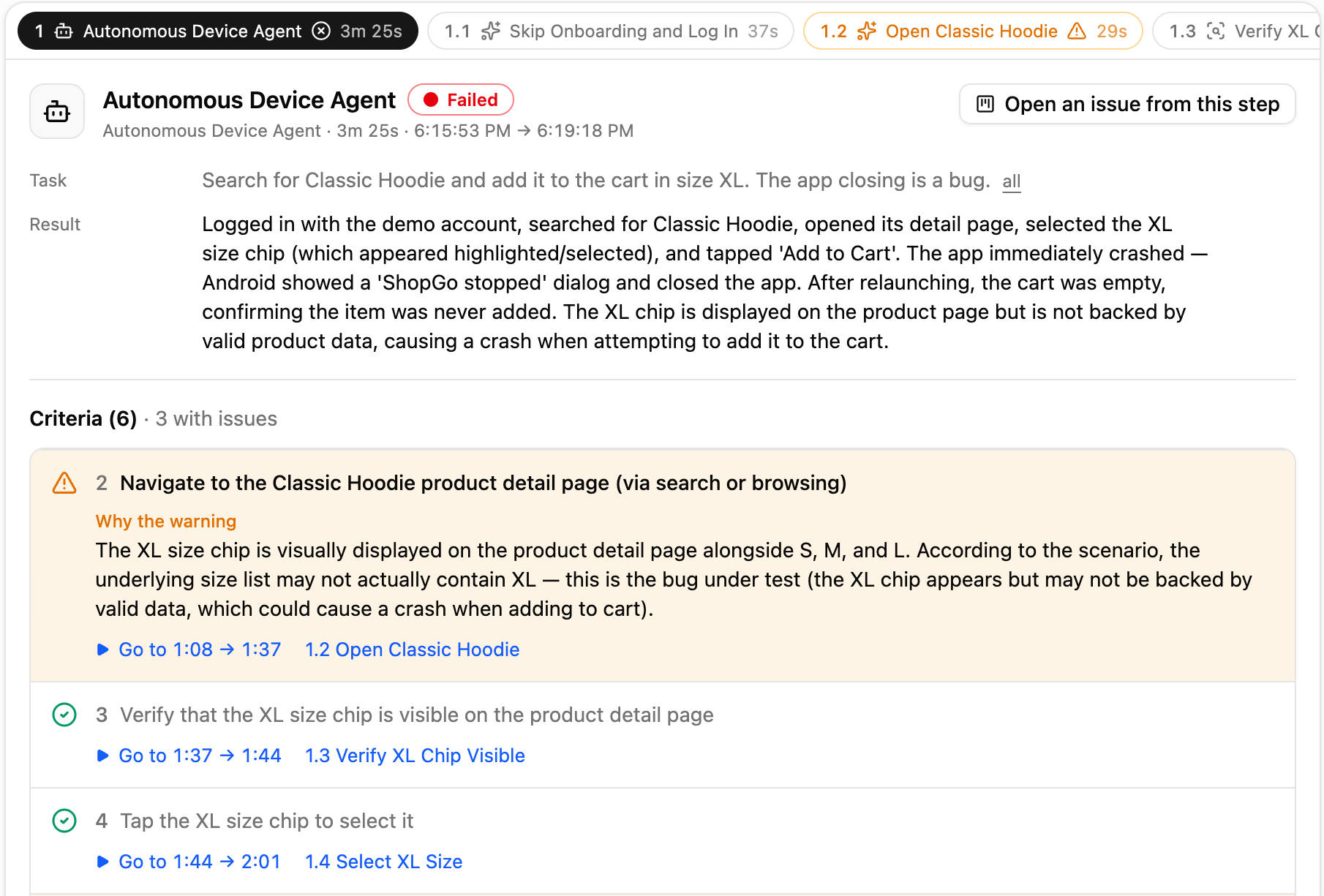
Search for Classic Hoodie and add it to the cart in size XL. The app closing is a bug.
- 01
Looks at the screen
Reads which screen the app is on right now.
- 02
Plans the test
Writes down up front, as criteria, what has to happen for the test to pass.
- 03
Builds the boxes
Adds a box for each step and connects them in order.
- 04
Runs and fixes
Runs the chain. If a step fails, it changes or deletes the box and tries again.
Pinned AI Instructions
Pinned AI Instructions learn the job once, then run the same steps again
Put a Pinned AI Instructions box in the scenario instead of AI Instructions, and the agent uses the model only on the first run. It saves the steps it took under the box. Later runs play those steps back directly, so runs are faster and use far fewer AI tokens. If a step fails, the model steps back in.
1First run
It learns
The agent does the job with the model and writes the steps it took under the Pinned AI Instructions box.
2After that
It replays
The saved steps run again with no model in the loop. Same path, a fraction of the time.
3If a step runs into a problem
The model wakes up
Only for that step. It repairs it and the run carries on.
Boxes that work the same way
- Pinned AI Instructions
- Pinned Validation
- Pinned AI Extraction
- Pinned Definition Agent
Pinned Validation works the same way. When a check fails, the model decides whether the expectation really broke or the check simply went stale.
Effort
You choose how deeply the agent thinks
A sign-in screen does not need what a crowded game level needs. Leave it on automatic and the agent sets it per scenario.
- Automaticset per scenario
- Simple0.5x
- Medium1x
- Hard2x
- Very hard5x
When it has to be exact
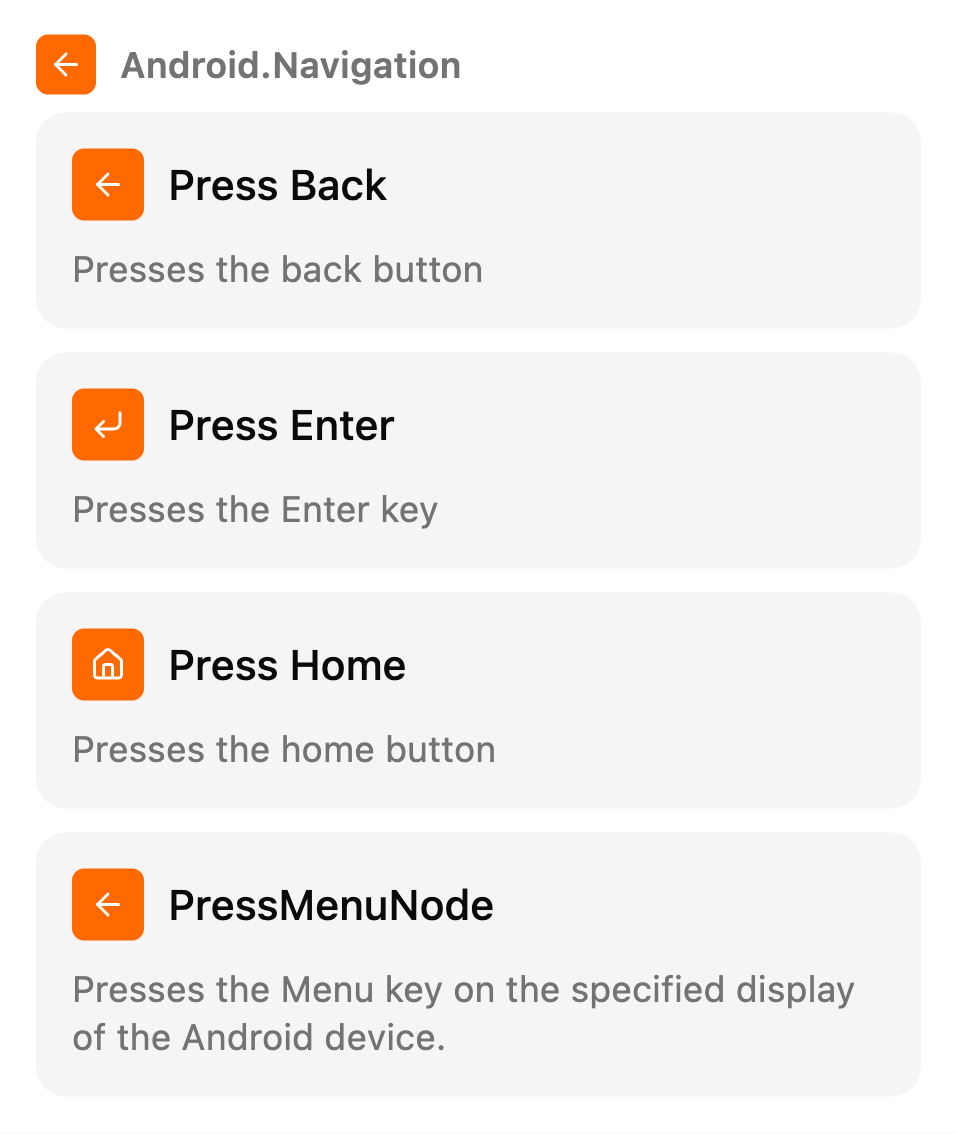
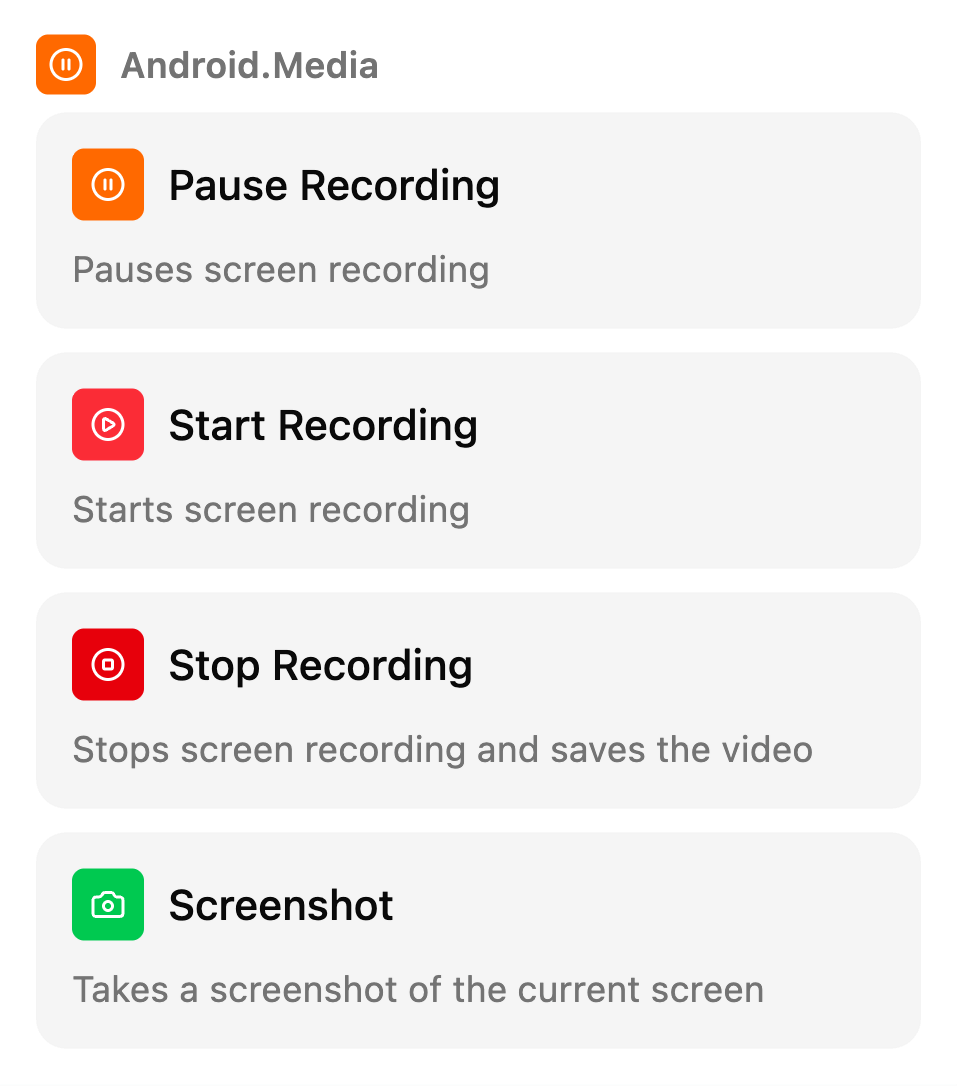
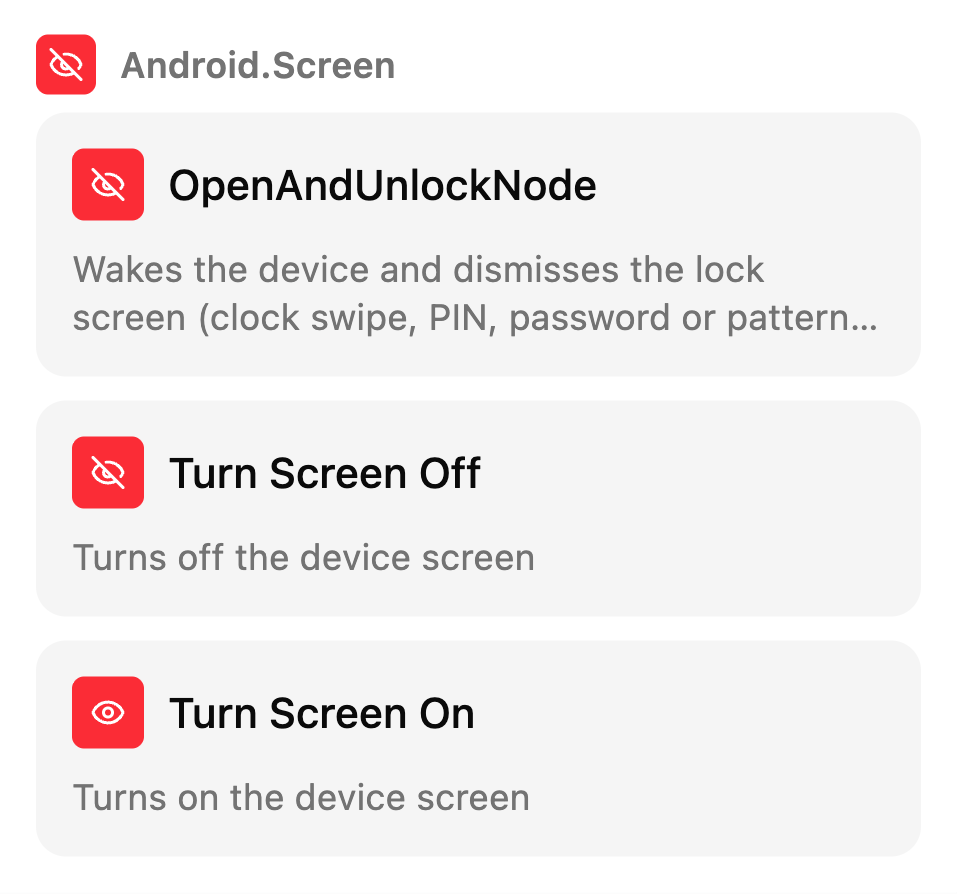
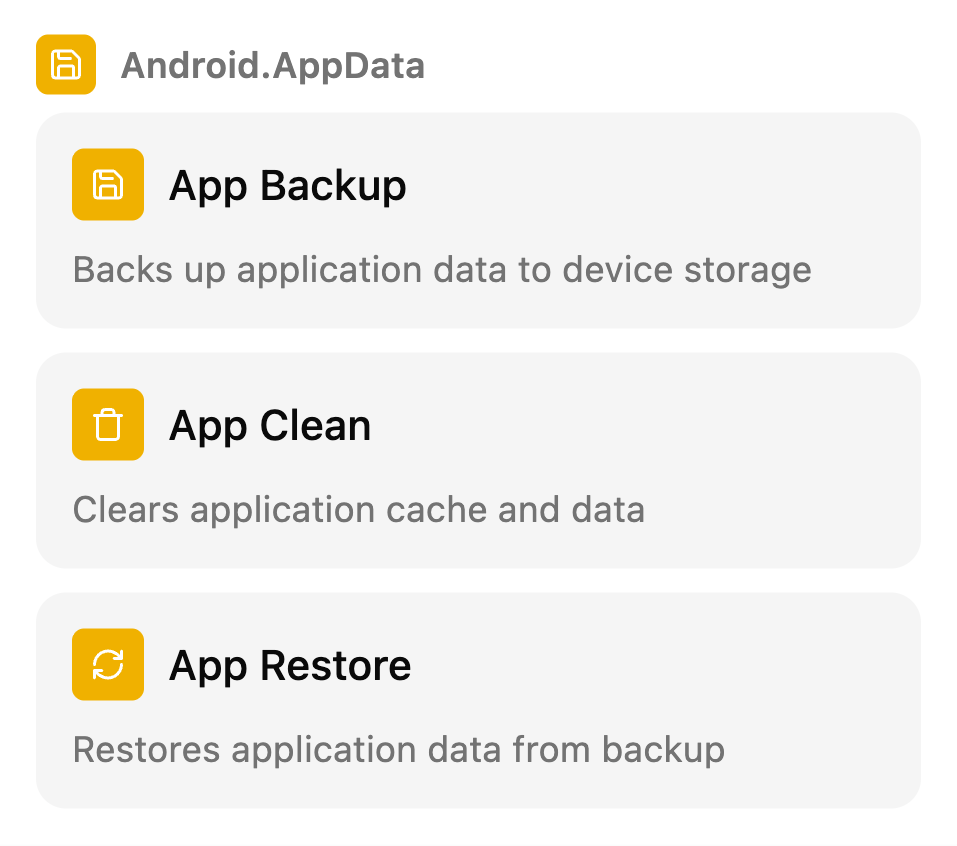
Eighty-nine ready steps sit in the same flow
Some things you do not want decided for you. Those you place by hand, next to the AI boxes, in the same scenario.
89 ready steps
Click a group to see its boxes as they look in the product.

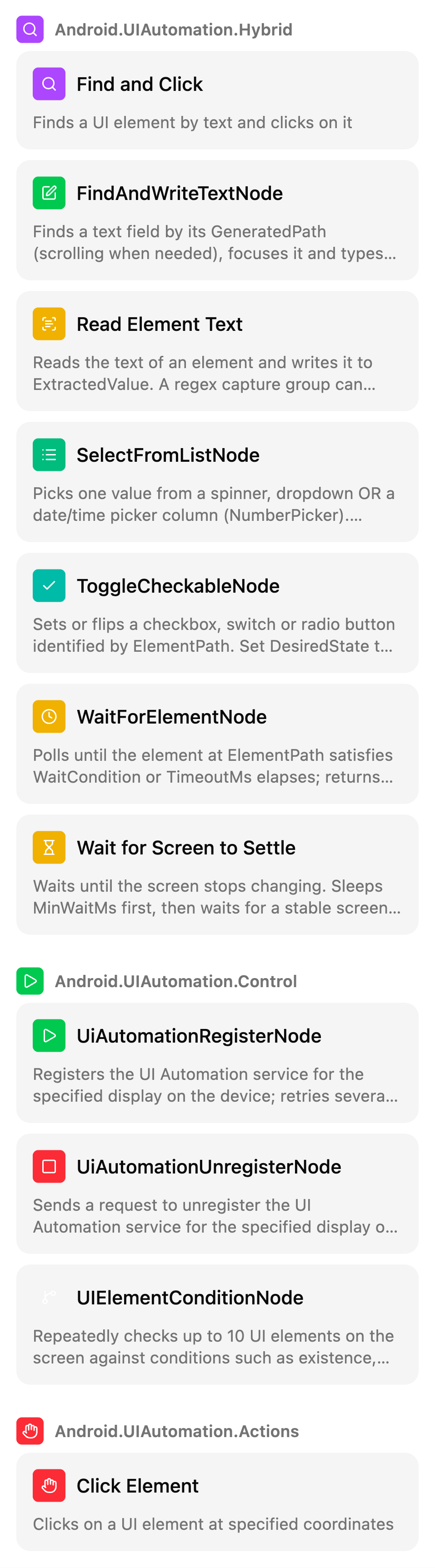
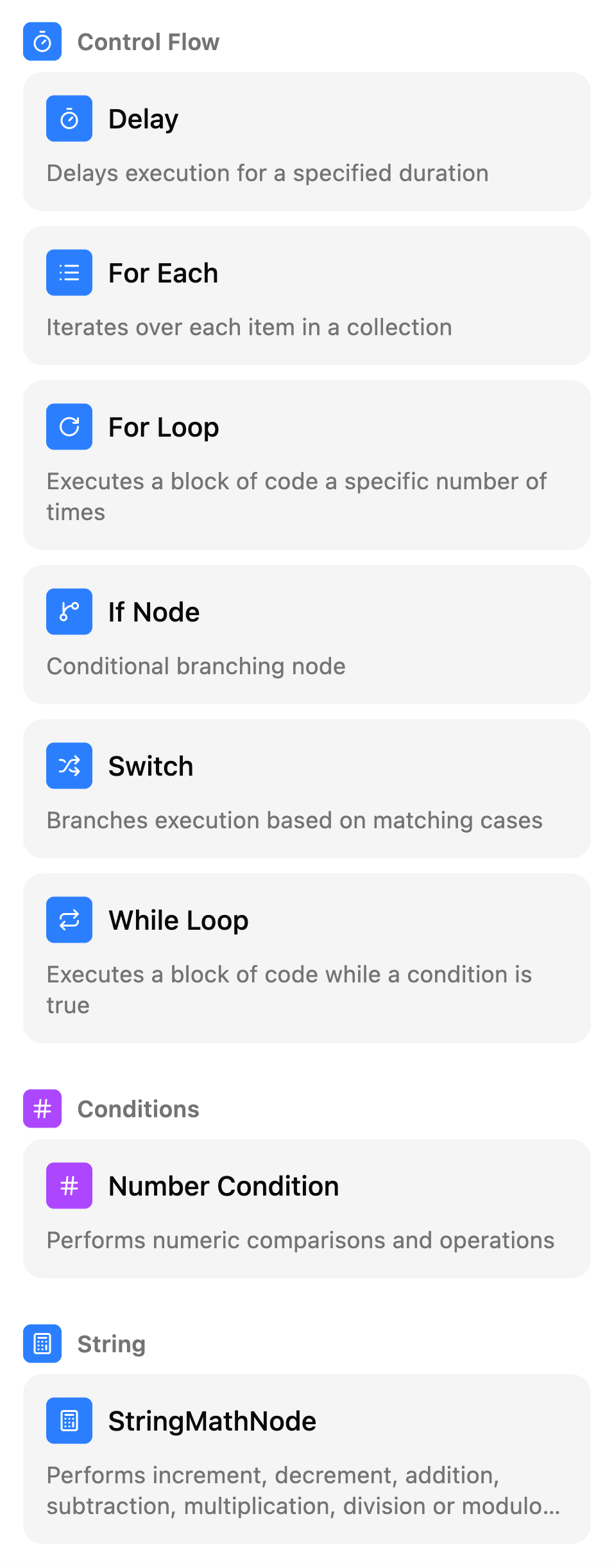
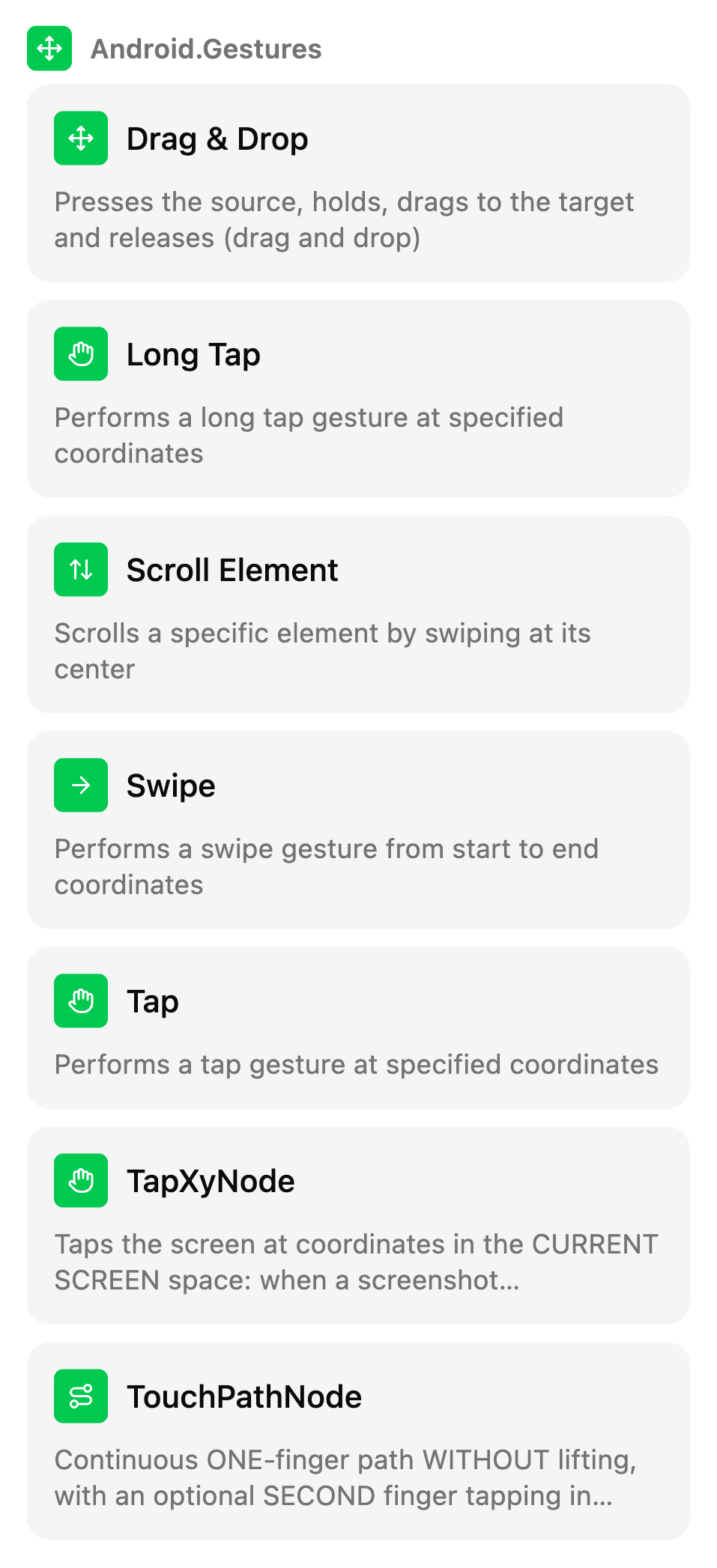
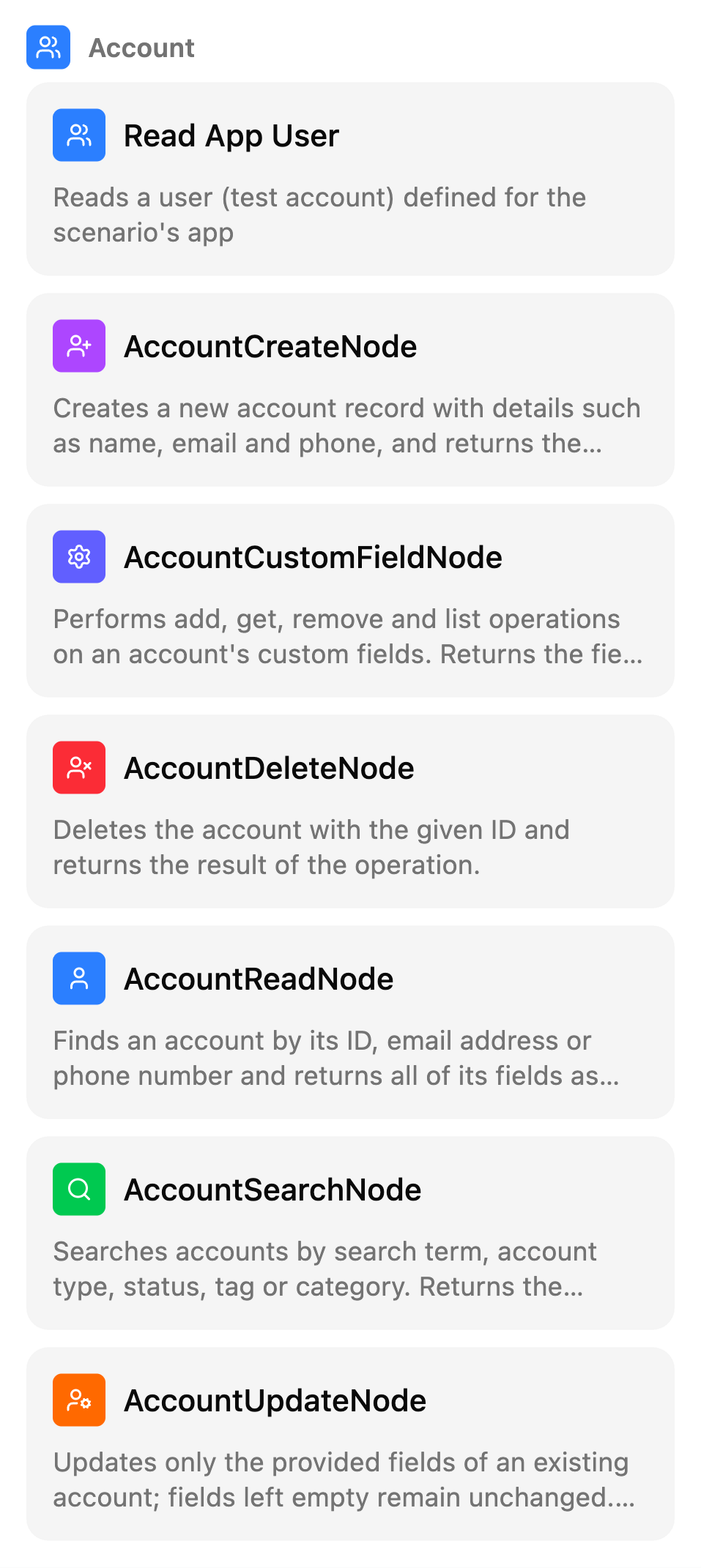
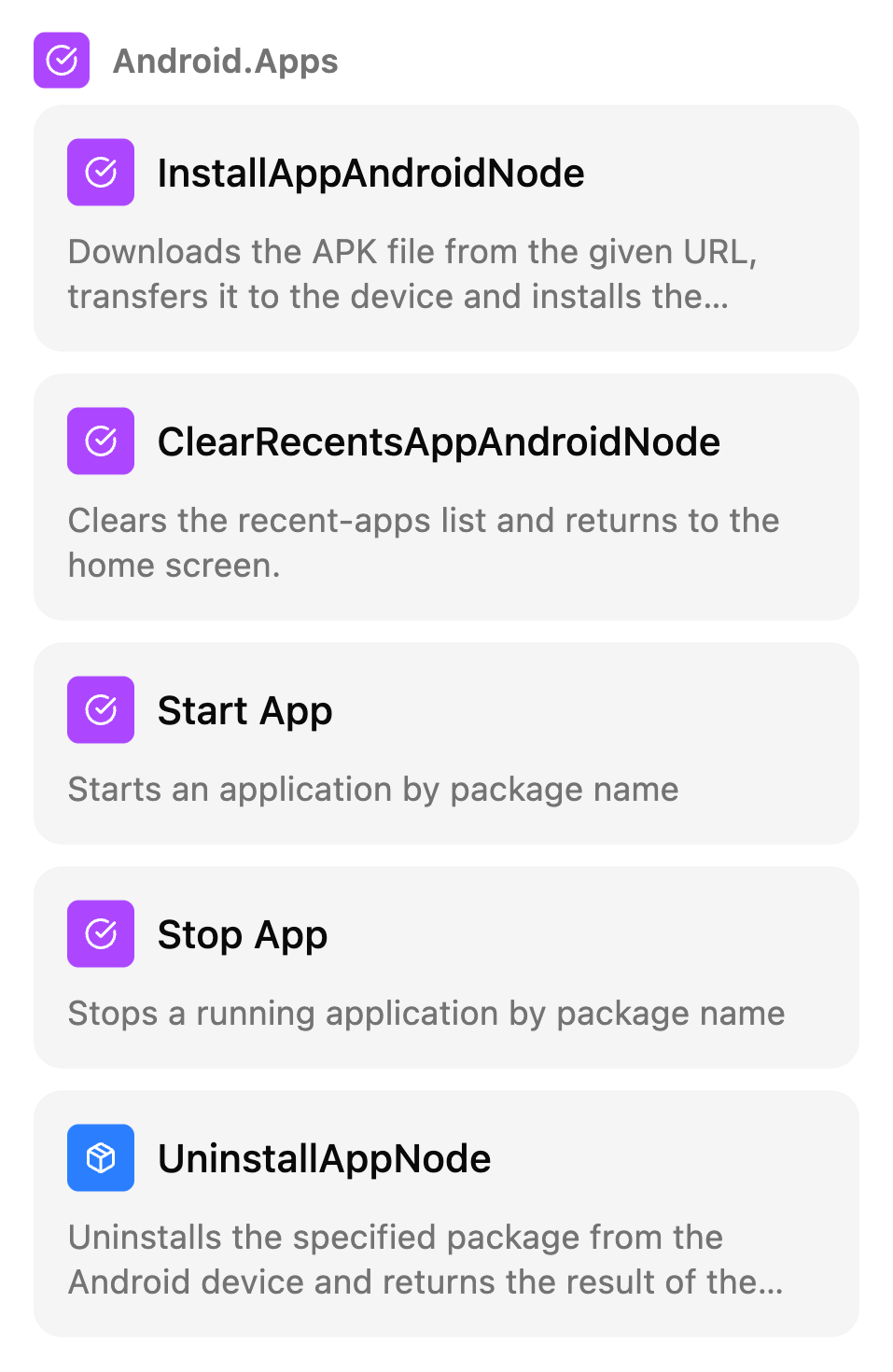
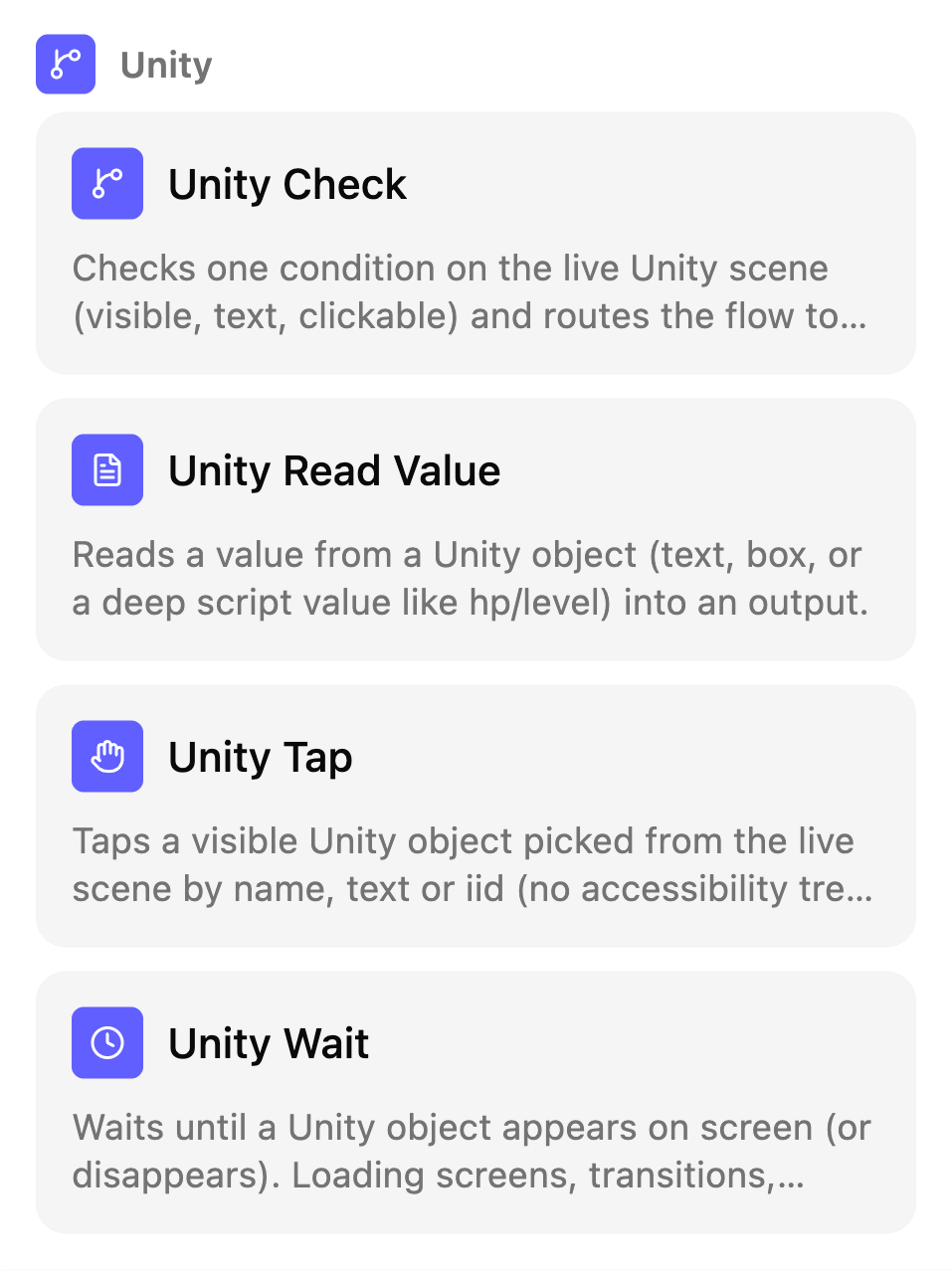
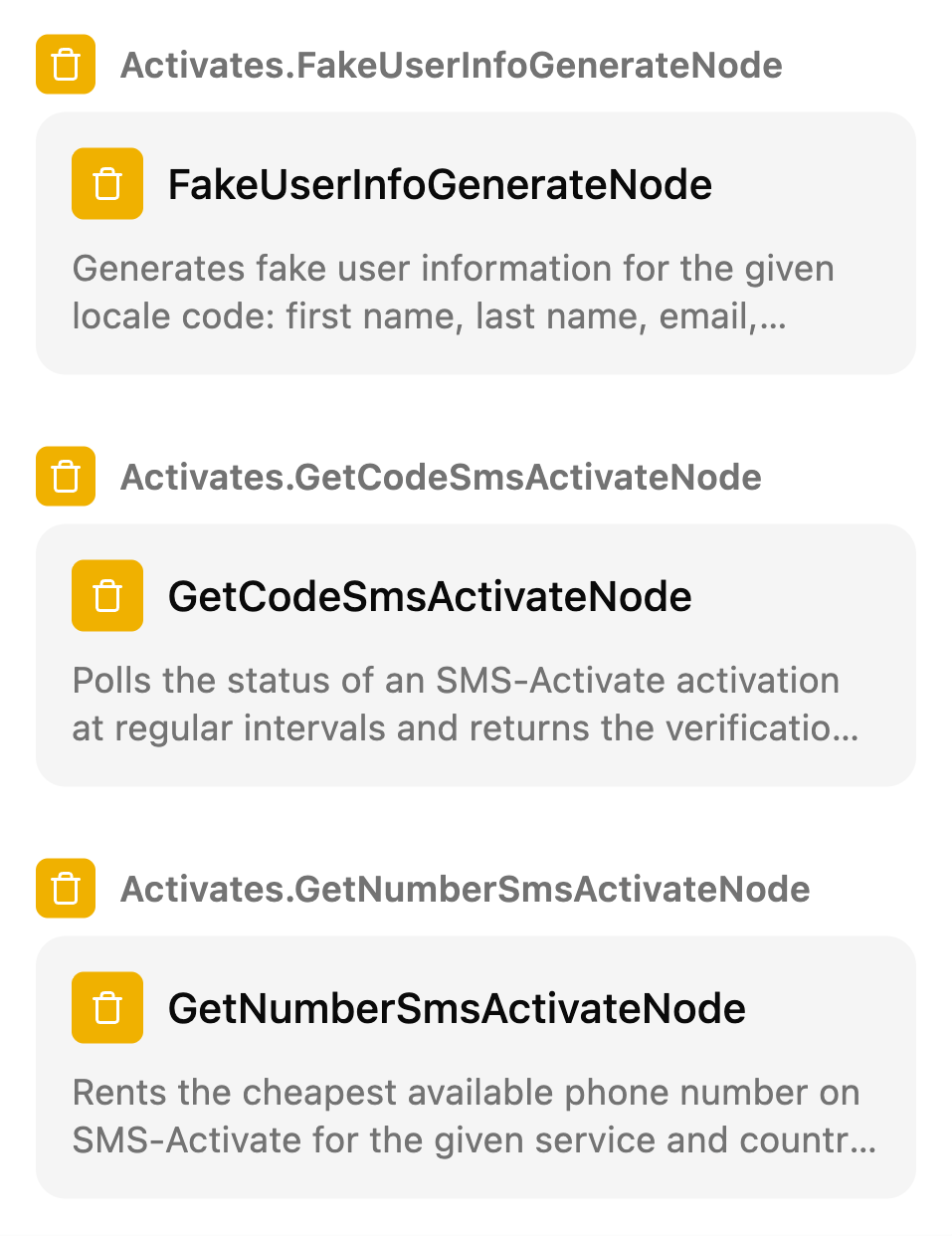
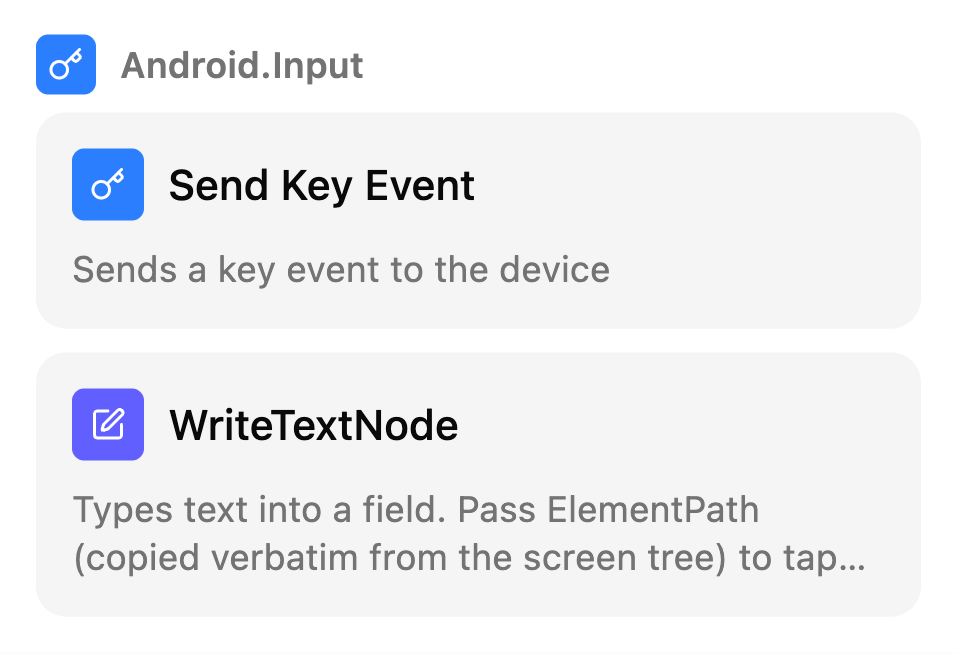
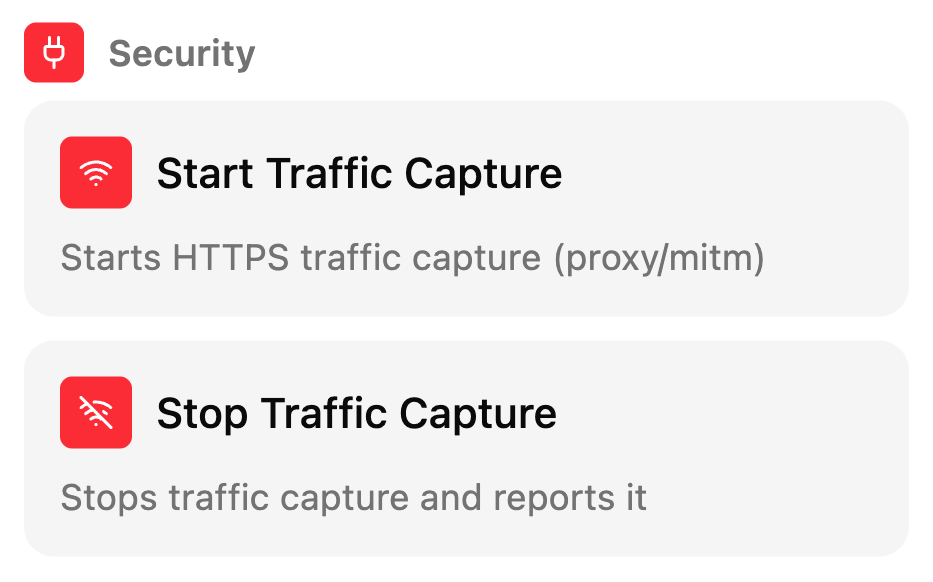
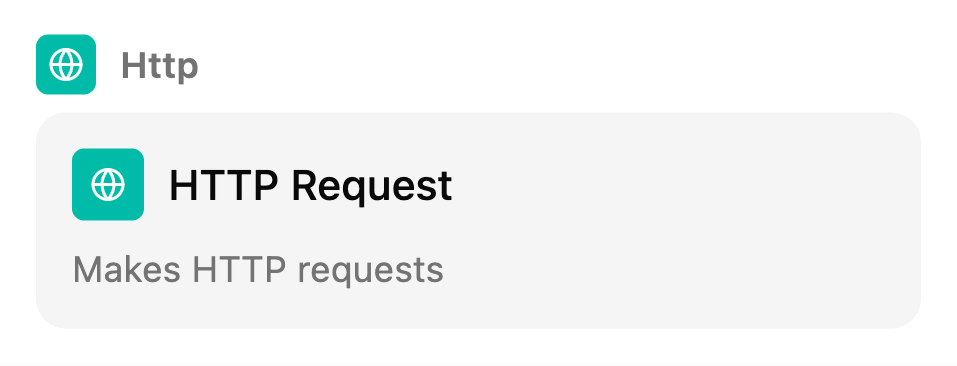
Traffic capture puts your app's HTTPS traffic in front of you, alongside the rest of the test.
Workflows
Group scenarios and run them in order with one click
The flows you check before a release go into one workflow. Sign-in, cart, checkout, profile. They run one after another on the environment you pick. The list shows each workflow's last ten runs, its success rate and how many tests broke in the last run.
- ShopGo pre-release90% last 10ManualPassed2 hours ago · 6/6 passed
- RideGo sign-in and ride50% last 6ManualFailedyesterday · 2 tests failed
- Minesweeper level run100% last 3ManualCancelled3 days ago · 2/3 passed
You start a workflow with one click. It can also run on its own on the days and hours you pick, or when a new version of your app is uploaded. See the integrations
Let's write your first scenario together.
Tell us about your app and we'll watch a live run with you.