AI tools (MCP)
Run your tests from AI, in plain words.
TestSafe connects to any AI tool that supports MCP. You can create and run all your test scenarios automatically and see the results.
Which tools it works with
- Claude
- Claude Code
- ChatGPT
- Cursor
- GitHub Copilot
- Windsurf
- Gemini CLI
- and any other tool that supports MCP
What you can ask
Type one sentence, the AI does the rest.
Anything you can do in TestSafe, the AI can do too.
Scenarios
Write and run a scenario
It creates the scenario, adds the steps, connects them and runs it. It can stop a run, or group scenarios into a workflow.
You typeWrite a test that adds Classic Hoodie in size XL to the cart, then run it.
Reports
Read the report for you
It opens the result, the steps, the screenshots and the crash. It tells you which tests keep failing and can share a report with a link.
You typeWhy did last night's checkout test fail?
Phones
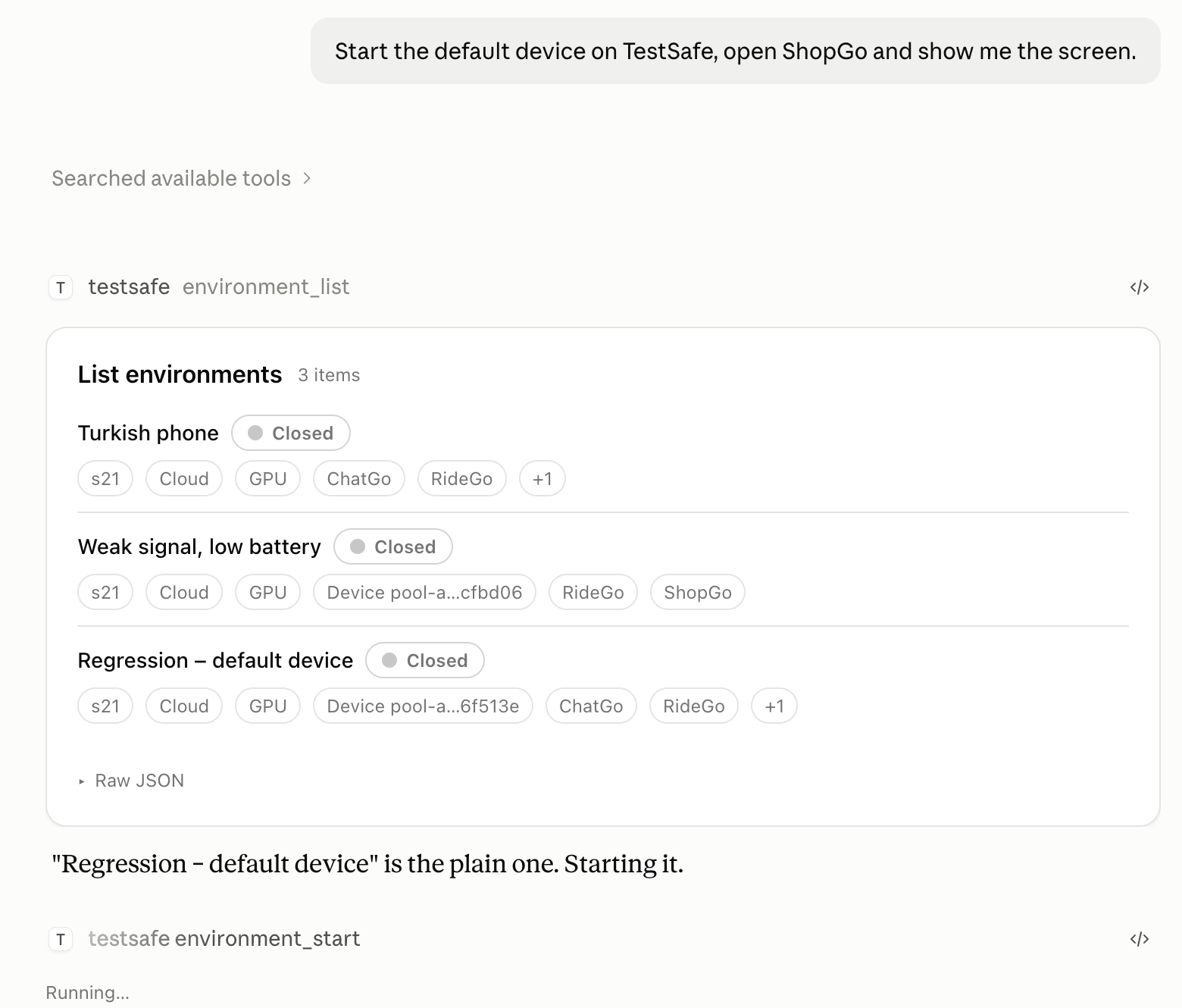
Open a phone and look at it
It starts an environment, takes a screenshot and reads what is on the screen. It can tap, type, swipe, open an app and install a new version.
You typeStart the Turkish phone and show me the screen.
Conditions
Change the phone's conditions
Language and time zone, battery level, Wi-Fi and mobile signal, location and route, Bluetooth, sensors and camera. All while the phone is on.
You typeDrop the battery to 5% and make the signal weak.
Apps
Upload the app
It uploads a new build, lists the versions and manages the test accounts your app signs in with.
You typeUpload this APK as a new ShopGo version.
Team
Send the result to your team
It opens a Jira issue with the evidence attached, posts the run to Slack and sets which GitHub repo runs what.
You typeOpen a Jira issue for this crash and attach the video.
How it works
You ask. The AI uses TestSafe. The answer comes back to the chat.
- 01
You write a sentence
In any AI tool you can connect with MCP.
- 02
The AI uses TestSafe
It picks the right step by itself. It starts a phone, runs a scenario or reads a report.
- 03
The result comes back
The screenshot, the test result, a summary of the report or the reason for a crash appears in the same chat.
Security
Read only, run tests or full access. You choose what the AI can do.
The AI uses TestSafe through your account. You decide what it can do.
- Deleting scenarios, environments or apps stays off unless you turn it on.
- A key expires after 90 days by default.
- Keys are made and removed only in the web app. The AI cannot create a key for itself.
- You see when each key was last used and how many calls it made. Organization admins see their members' keys too.
Setup
Connected in three steps
- 01
Add TestSafe to your AI tool
Paste the address below. That is all it takes.
- 02
Sign in
Sign in with your TestSafe account and choose what the AI can do.
- 03
Ask something
Write what you want in one sentence. The AI picks the steps it needs and gets it done.
https://api.testsafe.io/mcpclaude mcp add --transport http testsafe https://api.testsafe.io/mcpThen sign in with your TestSafe account and you are connected.
{
  "mcpServers": {
    "testsafe": { "url": "https://api.testsafe.io/mcp" }
  }
}Then sign in with your TestSafe account and you are connected.
code --add-mcp '{"name":"testsafe","type":"http","url":"https://api.testsafe.io/mcp"}'Then sign in with your TestSafe account and you are connected.
gemini mcp add --transport http testsafe https://api.testsafe.io/mcpThen sign in with your TestSafe account and you are connected.
codex mcp add testsafe --url https://api.testsafe.io/mcpThen sign in with your TestSafe account and you are connected.
{
  "mcpServers": {
    "testsafe": { "serverUrl": "https://api.testsafe.io/mcp" }
  }
}Then sign in with your TestSafe account and you are connected.
See it on your own app.
Tell us about your app and we will connect TestSafe to your AI tool together.